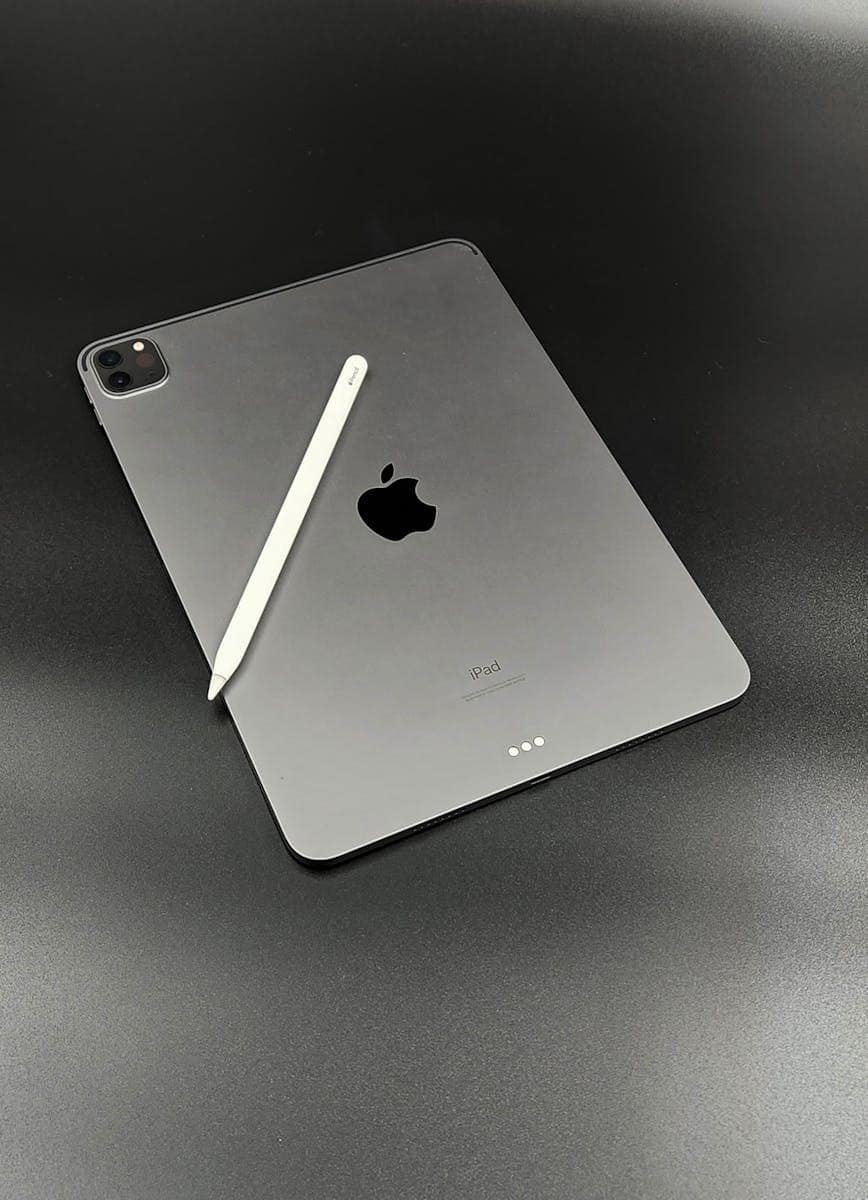
Your creative workflow just hit a snag: your Apple Pencil isn't cooperating with your iPad 10th Gen. Perhaps it's not writing, refusing to pair, or just acting erratically. It's a common frustration, especially with the 10th generation iPad's unique compatibility requirements, but the good news is that most troubleshooting Apple Pencil issues with iPad 10th Gen are straightforward to fix. You don't need to be a tech wizard to get back to sketching, note-taking, or navigating with precision.
This comprehensive guide will walk you through every potential solution, from the simplest checks to more advanced diagnostics, ensuring you can identify and resolve the problem quickly. We'll cover everything specific to your iPad 10th Gen, helping you revive your creative companion.
At a Glance: Quick Fixes for Your Apple Pencil
Before diving deep, here’s a rapid checklist for common issues:
- Check Compatibility: Ensure you have an Apple Pencil 1st Gen (with adapter) or Apple Pencil (USB-C). Other models won't work with iPad 10th Gen.
- Battery Check: A dead pencil won't work. Verify its charge level.
- Firm Connection: For pairing or charging, make sure the Pencil (or adapter) is securely plugged in or magnetically attached (if applicable for other iPad models, though not for 10th Gen directly).
- Restart Bluetooth: A quick toggle can often resolve connectivity hiccups.
- Restart iPad: The classic "turn it off and on again" often works wonders for software glitches.
- Tighten/Clean Nib: A loose or dirty tip can prevent proper contact.
- Update iPadOS: Outdated software can cause unexpected problems.
The Crucial First Step: Compatibility & Connection for Your iPad 10th Gen
The iPad 10th Generation has specific requirements for Apple Pencil compatibility that often trip users up. This is the first, and arguably most important, thing to verify when your Apple Pencil isn't working.
Is Your Apple Pencil the Right One for the iPad 10th Gen?
Not all Apple Pencils are created equal, and your iPad 10th Gen has distinct preferences. Here’s what works:
- Apple Pencil (1st Generation): Yes, but it requires a USB-C to Apple Pencil Adapter for both pairing and charging. This is a crucial accessory you might forget if you're upgrading from an older iPad with a Lightning port.
- Apple Pencil (USB-C): Yes, this model connects and charges directly via a USB-C cable to your iPad 10th Gen. It's a simpler, more direct connection.
What doesn't work with iPad 10th Gen: - Apple Pencil (2nd Generation): This model uses magnetic pairing and charging, a feature your iPad 10th Gen doesn't possess.
- Apple Pencil Pro: Also designed for magnetic attachment and specific gestures not supported by the 10th Gen.
If you discover you have an incompatible Apple Pencil, that's your root problem right there. You'll need to acquire one of the compatible models. For a deeper dive into the nuances of picking the right stylus, check out our 10th gen iPad Apple Pencil guide.
How to Properly Connect and Charge Your Compatible Pencil
Once you’ve confirmed you have a compatible Apple Pencil, ensure it's connected and charged correctly for your iPad 10th Gen.
1. For Apple Pencil (1st Generation) with iPad 10th Gen:
- Pairing & Charging:
- Remove the cap from your Apple Pencil 1st Gen.
- Plug the Lightning connector of your Apple Pencil into the USB-C to Apple Pencil Adapter.
- Plug the USB-C end of the adapter into your iPad 10th Gen's USB-C port.
- Your iPad should display a "Pair" button. Tap it.
- Charging will begin automatically. You can check the battery level in your iPad's Today View (swipe right from the Home Screen).
2. For Apple Pencil (USB-C) with iPad 10th Gen:
- Pairing & Charging:
- Ensure your iPad is running iPadOS 17.1 or later (this is important for seamless connection).
- Slide open the cap on your Apple Pencil (USB-C) to reveal the USB-C connector.
- Plug the Apple Pencil (USB-C) directly into your iPad 10th Gen's USB-C port.
- It should connect almost instantly. You can confirm its status and battery level by checking the Bluetooth settings (Settings > Bluetooth) or the Batteries widget in Today View.
If your Pencil is correctly connected but still not responding, let's move on to power and software checks.
Power Up: Checking and Resolving Battery Issues
A surprisingly common reason for a non-responsive Apple Pencil is simply a drained battery. Don't overlook this fundamental check!
How to Verify Your Apple Pencil's Battery Level
- For all compatible Apple Pencils: Swipe right on your iPad's Home Screen to access Today View. Ensure you have the "Batteries" widget added. This widget will display the charge level of your Apple Pencil when it's connected.
- Alternatively, through Settings: Go to Settings > Apple Pencil. If connected, you should see the battery percentage listed there.
If the battery is low or completely depleted, follow the charging steps mentioned above for your specific Apple Pencil model. Allow it to charge for at least 15-20 minutes, then retest.
Clearing the Air: Resolving Connectivity Glitches
Sometimes, your Apple Pencil might seem connected but isn't actually communicating effectively with your iPad. Bluetooth and general system hiccups are often the culprits here.
Resetting Bluetooth on Your iPad
Bluetooth can sometimes get "stuck." A quick reset often clears the issue.
- Go to Settings > Bluetooth.
- Toggle the Bluetooth switch off.
- Wait about 10-15 seconds.
- Toggle the Bluetooth switch back on.
- Try connecting your Apple Pencil again using the appropriate method (adapter for 1st Gen, direct for USB-C).
Forgetting and Re-pairing Your Apple Pencil
If a simple Bluetooth toggle doesn't work, telling your iPad to "forget" the Pencil and then re-pairing it can establish a fresh, stable connection.
- Go to Settings > Bluetooth.
- Find your Apple Pencil in the list of "My Devices."
- Tap the info icon (a small 'i' in a circle) next to your Apple Pencil's name.
- Tap "Forget This Device", then confirm by tapping "Forget Device" again.
- Wait a moment.
- Now, re-pair your Apple Pencil as if it were brand new, using the specific steps for your Apple Pencil (1st Gen via adapter, or USB-C Pencil directly into the iPad 10th Gen). You should see a "Pair" prompt.
Toggling Airplane Mode
Similar to restarting Bluetooth, cycling Airplane Mode can sometimes reset wireless radios, including Bluetooth, and resolve minor connectivity issues without a full device restart.
- Swipe down from the top-right corner of your iPad screen to open Control Center.
- Tap the Airplane Mode icon (it looks like an airplane) to turn it on (it will likely turn amber).
- Wait for a few seconds.
- Tap the Airplane Mode icon again to turn it off.
- Test your Apple Pencil.
Hardware Checks: Inspecting the Physical Pencil
Beyond software and connectivity, physical issues with your Apple Pencil itself can cause problems. These are easy to overlook but crucial to check.
Clean and Tighten the Apple Pencil Nib
The nib (or tip) is where the magic happens. Dirt, debris, or a loose connection can prevent it from registering input.
- Gently unscrew the nib from the Apple Pencil.
- Inspect the nib and the Pencil's tip for any visible dust, lint, or grime.
- Use a soft, lint-free cloth (like a microfiber cloth) to gently wipe away any debris. Avoid using harsh chemicals or abrasive materials.
- Once clean, screw the nib back on firmly. Don't overtighten, but ensure it's snug.
- Test the Pencil.
Replace the Apple Pencil Nib
Nibs are consumables; they wear down over time, especially with heavy use. A worn or damaged nib can lead to inconsistent or no input.
- If cleaning and tightening don't work, or if you visibly notice wear, cracks, or flatness on your nib, it's time for a replacement.
- Unscrew the old nib completely.
- Screw on a new, genuine Apple Pencil nib designed for your model. Ensure it's firmly attached.
- Test your Pencil. Always use genuine Apple replacement nibs to ensure compatibility and optimal performance.
Check for Screen Protector Interference
While many screen protectors are designed to be Pencil-friendly, some thicker or improperly installed protectors can create a small gap or interference that affects the Apple Pencil's responsiveness.
- If you have a screen protector, gently peel back a corner or remove it entirely (if you have a spare, or are comfortable reinstalling).
- Test your Apple Pencil directly on the iPad screen.
- If the Pencil works flawlessly without the protector, you've found your culprit. Consider using a thinner, Apple Pencil-compatible screen protector, or foregoing one altogether if you're comfortable.
Software Deep Dive: App-Specific and System-Level Fixes
Sometimes the issue isn't with the hardware or connection, but with the software environment.
Does the App Support Apple Pencil?
It sounds obvious, but not every app is designed to work with the Apple Pencil. Some apps, especially older ones or those primarily focused on text input, might not recognize stylus input.
- Test your Apple Pencil in a known-compatible app. Good options include Apple Notes, Pages, or Safari (using Scribble).
- If it works in some apps but not others, the issue is likely app-specific.
- Check the app's documentation or its App Store description to confirm Apple Pencil support.
- Some apps might even require you to enable Apple Pencil support within their own internal settings.
Turn On and Test Scribble Mode
Scribble is a core Apple Pencil feature that converts handwriting to text. If it's not enabled, or if it's malfunctioning, it can affect your experience.
- Go to Settings > Apple Pencil.
- Toggle "Scribble" on if it's off.
- Tap "Try Scribble" to access a tutorial and testing area.
- Practice the various Scribble gestures:
- Handwrite: Write directly into text fields to see it convert.
- Delete: Scratch through words to erase them.
- Select: Circle text to highlight it.
- Insert: Tap and hold to make space for new text.
- Join/Separate: Draw vertical lines between characters or words.
- If Scribble functions correctly here, your Pencil is likely working fine at a system level, pointing back to an app-specific issue.
Restart Your iPad
A simple restart can resolve a multitude of temporary software glitches, including those affecting peripheral connectivity.
For iPad 10th Gen (no Home button):
- Press and quickly release the Volume Up button (the one closer to the Top button).
- Press and quickly release the Volume Down button (the one farther from the Top button).
- Press and hold the Top button (on the side, near the volume buttons).
- Keep holding until the Apple logo appears.
- Once your iPad has restarted, try connecting and using your Apple Pencil again.
Update iPadOS
Outdated software can introduce bugs or compatibility issues. Ensuring your iPad is running the latest iPadOS version is always a good troubleshooting step.
- Go to Settings > General > Software Update.
- If an update is available, tap "Download and Install" or "Update Now."
- Follow the on-screen prompts. Your iPad will restart during the process.
- After the update, reconnect your Apple Pencil and test it.
Reset Your iPad to Factory Settings (Last Resort)
This is an extreme step and should only be considered if absolutely nothing else has worked, as it will erase all data on your iPad. Ensure you have a complete backup of your iPad before proceeding.
- Go to Settings > General > Transfer or Reset iPad.
- Tap "Erase All Content and Settings."
- Follow the prompts. Your iPad will reset to its factory condition.
- Once reset, set up your iPad and attempt to pair your Apple Pencil again. If the Pencil now works, it indicates a deep software conflict was at play.
When to Call in the Experts: Contacting Apple Support
If you've meticulously worked through every single troubleshooting step outlined above, and your Apple Pencil still refuses to cooperate with your iPad 10th Gen, it's time to reach out to the professionals.
There could be an underlying hardware fault with either your Apple Pencil, your USB-C to Apple Pencil Adapter (if using 1st Gen), or your iPad itself.
- Visit the official Apple Support website.
- Look for options to chat online, call, or schedule an appointment at an Apple Store Genius Bar.
- Be prepared to describe the problem in detail and list all the troubleshooting steps you've already attempted. This will help them diagnose the issue more efficiently.
They can run more advanced diagnostics or arrange for a repair or replacement if necessary.
Get Back to Creating: A Final Word
A non-working Apple Pencil can be a major disruption to your workflow, especially if you rely on it for notes, art, or navigation on your iPad 10th Gen. By systematically going through these troubleshooting steps, you'll likely pinpoint and resolve the issue without needing external help. Remember to start with the basics—compatibility and charge—before moving on to more complex software or hardware checks.
Hopefully, with these insights, your Apple Pencil is now back to full functionality, ready to capture your next brilliant idea. Happy creating!