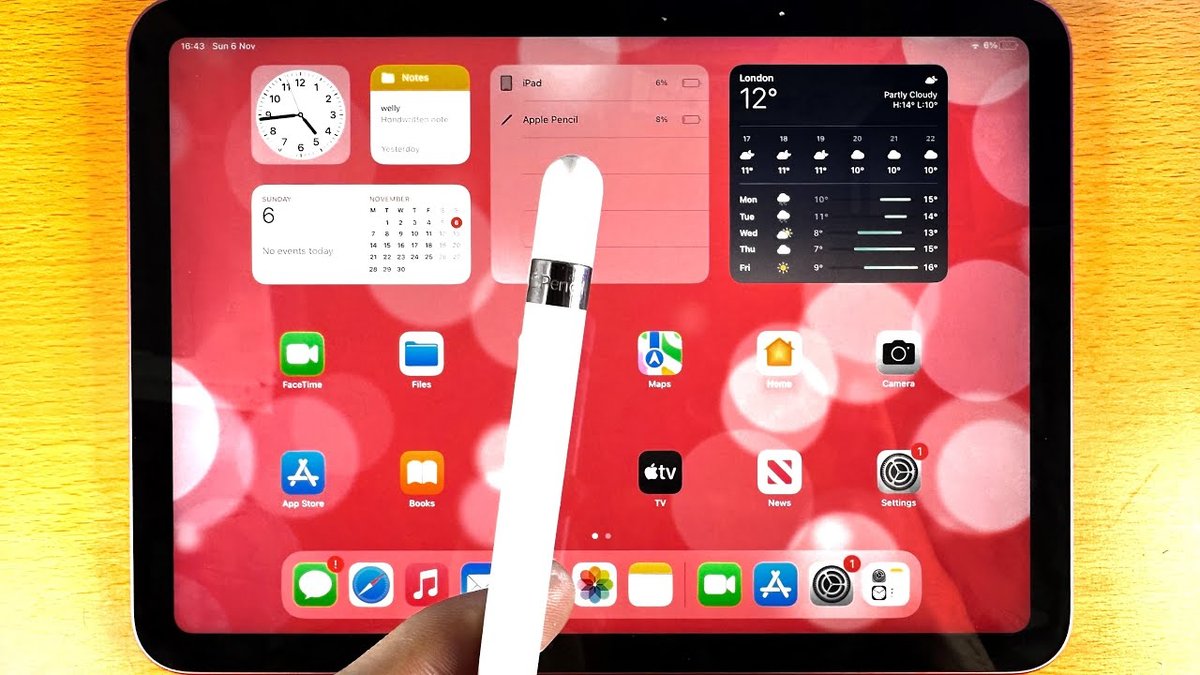
The moment you first touch an Apple Pencil to an iPad screen, something transformative happens. The precision, the responsiveness, the sheer natural feel of writing or drawing instantly elevates your tablet experience. For owners of the popular iPad 10th generation, unlocking the full potential of your device means understanding the Features & Best Uses of Apple Pencil on iPad 10th Gen, a journey that begins with a crucial compatibility check.
While the iPad 10th Gen is a fantastic tablet, navigating the world of Apple Pencils can be a little tricky due to its unique design and port configuration. But once you know which Pencil is right for you, a world of creative and productive possibilities opens up, making your iPad feel less like a simple tablet and more like a versatile digital canvas or notebook.
At a Glance: Your Apple Pencil Guide for iPad 10th Gen
- Compatibility is Key: Your iPad 10th Gen works with two specific Apple Pencils: the 1st-generation Apple Pencil (requires a USB-C to Apple Pencil Adapter for charging) and the Apple Pencil (USB-C).
- No Go for Gen 2 or Pro: The iPad 10th Gen does not support the 2nd-generation Apple Pencil or the Apple Pencil Pro due to the lack of magnetic attachment and wireless charging capabilities.
- Pressure Sensitivity: If you need variable line weight and shading for art, the 1st-generation Apple Pencil is your choice. The Apple Pencil (USB-C) lacks this feature.
- Palm Rejection & Tilt Support: Both compatible Pencils offer these essential features for a natural writing and drawing experience.
- Charging Differences: The 1st-gen charges via Lightning (and adapter for the 10th Gen), while the USB-C model charges directly via its USB-C port.
- Top Uses: Ideal for handwriting notes, drawing, marking up documents, precise navigation, and educational tools.
Unpacking Apple Pencil Compatibility for Your iPad 10th Gen
Let's cut straight to the chase: selecting the right Apple Pencil for your iPad 10th Gen is paramount. Many users mistakenly assume all Apple Pencils are universally compatible, leading to frustration. Your iPad 10th generation, with its modern USB-C port and lack of magnetic charging strips, has specific requirements.
It supports two models:
- The First-Generation Apple Pencil: This was the original, released in 2015. It's recognizable by its glossy white, perfectly round design and a removable cap that reveals a Lightning connector.
- The Catch: Since your iPad 10th Gen has a USB-C port, not a Lightning port, you must use an additional USB-C to Apple Pencil Adapter (sold separately by Apple or often included with new 1st-gen Pencils intended for the 10th Gen) to pair and charge it. This adapter plugs into your iPad's USB-C port, and the Apple Pencil then plugs into the adapter.
- Why it Matters: This extra adapter can be a bit clunky for charging, but it's the only way to get the full pressure sensitivity and advanced features of the original Pencil on your 10th Gen iPad.
- The Apple Pencil (USB-C): Released in late 2023, this model was designed to offer a more affordable and straightforward option for iPads with USB-C ports, including your 10th Gen.
- The Advantage: It features a sliding cap that reveals a USB-C port. You simply plug it directly into your iPad 10th Gen's USB-C port for pairing and charging. It also attaches magnetically to the side of the iPad for storage, though it doesn't charge that way.
- The Trade-off: The key difference here is that the Apple Pencil (USB-C) does not have pressure sensitivity. While it supports tilt and palm rejection, artists and designers who rely on varying line weight will find this a significant limitation.
What Doesn't Work with Your iPad 10th Gen?
It's equally important to know which Pencils are off the table:
- Second-Generation Apple Pencil: This model (identifiable by its matte finish and a flat side) charges and pairs magnetically to the side of compatible iPads. The iPad 10th Gen lacks this magnetic charging capability.
- Apple Pencil Pro: The newest and most feature-rich Pencil also relies on magnetic attachment and wireless charging, which your iPad 10th Gen does not support.
Understanding these compatibility nuances is the first, most critical step in harnessing the power of the Apple Pencil on your 10th Gen iPad.
Unlocking Precision: Key Features of the Apple Pencil on iPad 10th Gen
Once you've got the right Apple Pencil connected, you'll immediately notice the difference it makes. Both compatible Pencils for the iPad 10th Gen bring a suite of features that enhance accuracy and usability, though the 1st-generation model offers an edge in creative depth.
Pixel-Perfect Accuracy & Low Latency
Regardless of which compatible Apple Pencil you choose, you'll experience remarkable precision. The Pencil interacts with the iPad screen with incredibly low latency, meaning what you write or draw appears almost instantaneously, mimicking the feel of pen on paper. This makes it ideal for everything from precise photo editing to quick sketches. You'll be able to tap tiny icons, navigate menus, and select text with a level of accuracy a finger simply can't match.
Palm Rejection: Write Naturally, Without Fear
Both the 1st-generation Apple Pencil and the Apple Pencil (USB-C) feature excellent palm rejection. This is a game-changer for anyone who writes or draws, allowing you to rest your hand naturally on the iPad screen without creating accidental marks or disrupting your workflow. The iPad intelligently differentiates between the Pencil's input and your palm, letting you focus entirely on your task, much like you would with a traditional notebook.
Tilt Support: Add Dimension to Your Strokes
Another fantastic feature shared by both compatible Pencils is tilt support. This allows the Pencil to detect the angle at which you're holding it relative to the screen. In drawing apps, this translates to dynamic effects like shading or broader strokes, much like tilting a real pencil or crayon. For note-takers, it might enable a highlighter function or a different calligraphic style depending on the app. It adds a natural, intuitive dimension to your digital work.
Pressure Sensitivity (1st-Generation Apple Pencil ONLY)
Here's where the 1st-generation Apple Pencil truly shines for specific users. It boasts robust pressure sensitivity, meaning the harder you press down on the screen, the thicker or darker your line becomes. This feature is absolutely essential for artists, illustrators, and graphic designers who need to control line weight, opacity, and shading in their work. Think of painting watercolors, sketching nuanced portraits, or inking comic book panels – pressure sensitivity is what makes those tasks feel natural and expressive on a digital canvas.
The Apple Pencil (USB-C), by contrast, does not have pressure sensitivity. While still excellent for general note-taking and basic sketches, this omission means it won't be suitable for professional art creation where varying line dynamics are critical. If you're considering the Apple Pencil for 10th Generation iPad, your creative aspirations will heavily influence which model you should pick.
Beyond the Finger: Top Uses for Your Apple Pencil on iPad 10th Gen
The Apple Pencil transforms your iPad 10th Gen from a consumption device into a powerful creation and productivity tool. Let's explore some of the most impactful ways you can integrate it into your daily life.
1. The Ultimate Digital Notebook: Handwriting & Note-Taking
This is arguably the most common and beloved use for the Apple Pencil. Whether you're a student, professional, or just someone who prefers writing by hand, the iPad 10th Gen combined with an Apple Pencil becomes an incredibly versatile notebook.
- Apple Notes App: The default Notes app in iPadOS is surprisingly powerful. You can write, sketch, and draw directly into your notes. With iPadOS 14 and later, the revolutionary "Scribble" feature allows you to write by hand in any text field, and your handwriting is automatically converted to typed text. This means you can handwrite an email, a search query, or even a URL in Safari. For more tips on mastering the Scribble feature, it's worth exploring its nuances.
- Third-Party Note-Taking Apps: Dive deeper with apps like GoodNotes, Notability, or Microsoft OneNote. These offer advanced features like organizing notes into notebooks, searching handwritten text, recording audio synced to your notes, and importing PDFs for annotation. They're perfect for students taking lecture notes or professionals annotating meeting minutes.
- Brainstorming & Mind Mapping: Quickly jot down ideas, connect concepts with arrows, and create visual outlines during brainstorming sessions. The fluidity of the Pencil makes it far more natural than typing for capturing raw thoughts.
2. Unleash Your Inner Artist: Creative Expression & Digital Art
For many, the Apple Pencil unlocks the iPad's potential as a digital art studio. If you opt for the 1st-generation Apple Pencil with its pressure sensitivity, your creative horizons expand dramatically.
- Drawing, Sketching, Painting: Apps like Procreate (iPad 10th Gen compatible!), Affinity Designer, and Clip Studio Paint offer incredibly rich toolsets. With pressure sensitivity, you can achieve nuanced strokes, build up layers of color, and create intricate details. Whether you're a seasoned artist or just starting, these apps, paired with the 1st-gen Pencil, offer a professional-grade experience. Even without pressure sensitivity, the Apple Pencil (USB-C) is still excellent for casual doodling, technical drawing, and vector art where uniform lines are desired. For a deeper dive into tools, check out the best drawing apps for iPad.
- Graphic Design & Illustration: Create logos, illustrations, comics, and detailed character designs. The precision of the Pencil makes intricate work manageable, and you can export your creations in various professional formats.
- Photo Editing & Retouching: Use the Pencil for fine-detail work in apps like Adobe Lightroom or Affinity Photo. Select specific areas, paint on adjustments, or make delicate retouches with unparalleled accuracy.
3. Streamline Your Workflow: Marking Up Documents & PDFs
Beyond creative pursuits, the Apple Pencil excels at enhancing productivity, especially when dealing with documents.
- Annotate & Review: Open PDFs, presentations, or worksheets in apps like Files, Mail, Pages, or dedicated PDF readers. Use the Pencil to highlight key passages, write margin notes, underline important points, or draw diagrams directly on the document. This is invaluable for students reviewing study materials, teachers grading assignments, or professionals reviewing contracts.
- Sign Documents Digitally: Instead of printing, signing, and scanning, simply use your Apple Pencil to sign documents directly on your iPad, then email them back instantly. It's a huge time-saver and incredibly convenient.
4. Enhance User Interface & Gaming: Precise Navigation & UI Interaction
Sometimes, the best use is simply making your iPad easier and more enjoyable to interact with.
- General Navigation: For those with larger fingers or who prefer not to smudge their screen, the Apple Pencil is a perfect finger substitute. Tap small buttons, drag sliders with precision, and navigate complex interfaces effortlessly.
- Gaming: Certain games, especially rhythm games like Osu! and VOEZ, or puzzle games, benefit immensely from the Apple Pencil's accuracy. It allows for faster, more precise inputs than a finger, potentially improving your gameplay.
5. Learning & Education: Interactive Lessons & Problem-Solving
The iPad 10th Gen with an Apple Pencil is a powerful educational tool for all ages.
- Interactive Learning: Students can complete digital worksheets, practice handwriting or math problems, and engage with educational apps that respond to precise input.
- Problem Solving: For subjects like math or physics, students can work out complex equations step-by-step directly on the screen, showing their work in a clear and organized manner. Educators can also use it to explain concepts dynamically during presentations or remote lessons.
The versatile nature of the Apple Pencil truly expands what your iPad 10th Gen is capable of, shifting it from a consumption device to a dynamic tool for creation, learning, and productivity.
Getting Started: Pairing, Charging, and Keeping Your Pencil Ready
Once you've chosen your compatible Apple Pencil, getting it set up and keeping it charged is straightforward, though slightly different for each model.
Connecting and Charging the 1st-Generation Apple Pencil
Since your iPad 10th Gen has a USB-C port, and the 1st-gen Apple Pencil has a Lightning connector, you'll need the USB-C to Apple Pencil Adapter.
- Preparation: Remove the cap from your 1st-generation Apple Pencil to reveal the Lightning connector.
- Connecting the Adapter: Plug the Lightning end of the Apple Pencil into one end of the USB-C to Apple Pencil Adapter.
- Connecting to iPad: Plug the USB-C end of the adapter into your iPad 10th Gen's USB-C port.
- Pairing: Your iPad should display a "Pair" button. Tap it to connect your Apple Pencil.
- Charging: The Pencil will charge directly from your iPad through this adapter. For a more convenient charging method that doesn't tie up your iPad, you can also use a Lightning cable (the one that came with your old iPhone, perhaps) with the original Apple Pencil Charging Adapter (usually included in the 1st Gen box) to charge your Pencil via a wall adapter.
- Tip: It can take about 15 minutes for a full charge, which typically lasts 10-12 hours of active use.
Connecting and Charging the Apple Pencil (USB-C)
This model offers a more direct experience with your iPad 10th Gen.
- Preparation: Slide the cap on the Apple Pencil (USB-C) to reveal its USB-C port.
- Connecting to iPad: Plug the Apple Pencil (USB-C) directly into your iPad 10th Gen's USB-C port.
- Pairing: Your iPad should automatically detect the Pencil and display a "Pair" button. Tap it to connect.
- Charging: The Pencil will charge directly from your iPad through this connection.
- Magnetic Storage (No Charging): While the Apple Pencil (USB-C) attaches magnetically to the side of your iPad 10th Gen for convenient storage, it does not charge wirelessly in this position. You'll always need to plug it in for power.
Checking Your Apple Pencil's Battery Life
For both models, you can easily check the battery status:
- Widgets: Swipe right from your Home Screen or Lock Screen to view your widgets. Make sure the "Batteries" widget is added, and it will display your Apple Pencil's charge level.
- Direct Connection: Briefly connect your Apple Pencil to your iPad (via adapter for 1st Gen, directly for USB-C), and a battery status notification will temporarily appear on screen.
Remember to keep your Apple Pencil charged, especially if you plan on extended creative or note-taking sessions. Avoiding prolonged storage in a completely depleted state can help prolong the battery's overall lifespan.
Troubleshooting Common Apple Pencil Hiccups
Even the best technology can occasionally run into a snag. Here’s a quick guide to troubleshooting common issues you might encounter with your Apple Pencil on iPad 10th Gen.
My Apple Pencil Isn't Pairing
This is often the first and most frustrating issue. Try these steps:
- Restart Everything: Restart your iPad 10th Gen and, if possible (by connecting/disconnecting), effectively restart your Apple Pencil.
- Check Bluetooth: Go to
Settings > Bluetoothon your iPad. Ensure Bluetooth is turned on. If the Apple Pencil is listed under "My Devices" but not connected, tap the "i" icon next to its name and select "Forget This Device," then try pairing again. - Clean Connectors: For the 1st-generation Apple Pencil, ensure the Lightning connector on the Pencil and the port on your USB-C to Apple Pencil Adapter are clean and free of debris. For the Apple Pencil (USB-C), ensure its USB-C port and your iPad's USB-C port are clear.
- Battery Check: A dead battery can prevent pairing. Connect your Pencil to your iPad as if to charge it and leave it for a few minutes. Then try pairing again.
- Adapter Check (1st Gen): If using the 1st-gen Pencil, ensure the USB-C to Apple Pencil Adapter is functioning correctly. Try connecting it to the iPad without the Pencil to see if the iPad registers it.
My Apple Pencil Isn't Charging
A dead Pencil is a useless Pencil. Here’s what to do:
- Verify Connection:
- 1st Gen: Ensure the Apple Pencil is fully and firmly plugged into the USB-C to Apple Pencil Adapter, and the adapter is firmly plugged into your iPad's USB-C port.
- USB-C: Ensure the Apple Pencil (USB-C) is fully and firmly plugged directly into your iPad's USB-C port.
- Clean Ports/Connectors: Dust or lint can prevent a good connection. Gently clean the charging ports on both your Pencil and your iPad, and the adapter's connectors.
- Try a Different Cable/Adapter (1st Gen): If you're charging your 1st-gen Pencil with a Lightning cable and its original adapter, try a different cable or power adapter to rule out faulty hardware.
- Check iPad Charge: Ensure your iPad itself has enough battery to charge the Pencil.
- Avoid Deep Discharge: Apple Pencils, especially the 1st Gen, are susceptible to permanent battery damage if left completely uncharged for long periods (weeks or months). Try to keep it at least partially charged if you're not using it.
Lag Issues or Poor Tracking
If your lines aren't smooth or there's a delay between your stroke and what appears on screen:
- Update Software: Ensure both your iPadOS firmware and the app you're using (e.g., Procreate, GoodNotes) are updated to their latest versions. Software bugs can cause performance issues.
- Check Accessibility Settings: Rarely, certain accessibility features can interfere. Go to
Settings > Accessibility > Apple Penciland ensure no unusual settings are enabled that might impact performance. - Replace the Tip: The Apple Pencil tip is a consumable item. If it’s worn down, scratched, or damaged, it can lead to poor tracking, scratchy lines, or inconsistent input. Replacement tips are readily available from Apple.
By systematically going through these troubleshooting steps, you can usually resolve most common Apple Pencil issues and get back to creating.
Making the Right Choice: Which Apple Pencil for Your iPad 10th Gen?
Now that you understand the intricacies of Apple Pencil compatibility and features, the final step is deciding which of the two compatible models is right for you. Your choice will largely depend on your primary use case, your budget, and how important pressure sensitivity is. You'll find that making this decision is crucial for getting the most out of your Apple Pencil on the 10th Gen iPad.
Apple Pencil (1st Generation) vs. Apple Pencil (USB-C): A Head-to-Head
| Feature | Apple Pencil (1st Gen) | Apple Pencil (USB-C) |
|---|---|---|
| Price | $99 | $79 |
| Pressure Sensitivity | YES (Crucial for art) | NO |
| Tilt Support | Yes | Yes |
| Palm Rejection | Yes | Yes |
| Double-Tap Gesture | No | No |
| Charging Method | Lightning port (requires USB-C to Apple Pencil Adapter for iPad 10th Gen) | USB-C port (plugs directly into iPad 10th Gen) |
| Magnetic Storage | No | Yes (for storage, but not charging) |
| Design | Glossy, perfectly round | Matte, slightly flatter side, sliding cap |
| Ideal For | Artists, illustrators, detailed note-takers, graphic designers needing variable line weight | Students, general note-takers, annotators, casual sketchers, those prioritizing simplicity and budget |
Decision Criteria: What Matters Most to You?
- Are you an artist or someone who needs variable line weight?
- Choose the 1st-generation Apple Pencil. Its pressure sensitivity is non-negotiable for serious drawing, painting, or any creative work where dynamic line control is essential. The extra step of using the adapter for charging might be a minor inconvenience compared to the artistic capability it unlocks.
- Are you primarily using it for note-taking, annotating, or simple sketches?
- Choose the Apple Pencil (USB-C). Its direct USB-C charging and slightly lower price point make it a fantastic, no-fuss option for these uses. You still get palm rejection and tilt support, which are critical for a natural writing experience. The lack of pressure sensitivity won't be a deal-breaker for these tasks.
- What's your budget?
- The Apple Pencil (USB-C) is the more affordable option at $79. The 1st-generation costs $99, and if you buy it separately for the 10th Gen, you might need to factor in the cost of the USB-C to Apple Pencil Adapter if not already included.
- How important is charging convenience?
- The Apple Pencil (USB-C) wins here with its direct plug-in charging. The 1st-generation's adapter, while functional, is less elegant and might be easier to misplace.
Considering Alternatives
While Apple Pencil offers unparalleled integration and features, there are Apple Pencil vs. third-party styluses to consider, especially if budget is extremely tight or you have very basic needs.
- Logitech Crayon: This is probably the best alternative for the iPad 10th Gen. It offers pixel-perfect precision, tilt support, and palm rejection. It's also quite durable and charges via USB-C. However, it lacks pressure sensitivity. It's often favored in educational settings for its robustness.
- Other Third-Party Styluses (Adonit, Zagg, etc.): Many cheaper styluses are available. Most of these will also lack pressure sensitivity and may not offer the same level of palm rejection or low latency as an Apple Pencil or Logitech Crayon. They're generally suitable for basic navigation or simple taps but fall short for serious writing or drawing.
Buying Advice: Always, always verify compatibility with your specific iPad model before purchasing. This is the single biggest source of buyer regret. Purchase from reputable retailers like Apple, Amazon, Best Buy, or your local electronics store to ensure you're getting a genuine product with warranty coverage. Keep an eye out for student discounts or holiday sales.
Maximize Your iPad 10th Gen Experience with Apple Pencil
The Apple Pencil, in either of its compatible forms, is far more than just a fancy stylus; it's a gateway to unlocking your iPad 10th Gen's full potential. Whether you're an aspiring artist, a diligent student, a busy professional, or simply someone who appreciates precise control, integrating an Apple Pencil into your workflow will undoubtedly elevate your digital experience.
By understanding the key features, especially the nuances of pressure sensitivity, and knowing how to correctly pair and charge your chosen model, you're well-equipped to make the most of this powerful accessory. Embrace the fluidity of digital handwriting, the freedom of a portable art studio, and the efficiency of annotating documents on the go. Your iPad 10th Gen is ready; all it needs is your touch – or rather, your Apple Pencil. Don't forget to explore other must-have iPad 10th Gen accessories to complete your setup, and delve into advanced digital note-taking strategies to truly master your new capabilities.